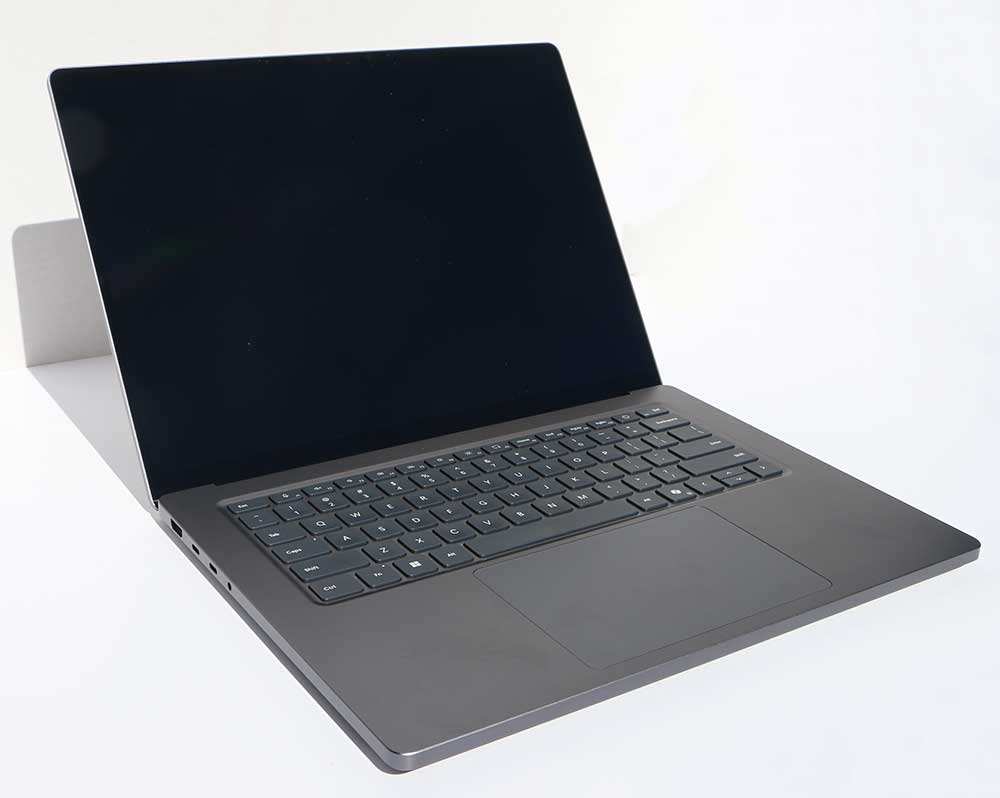
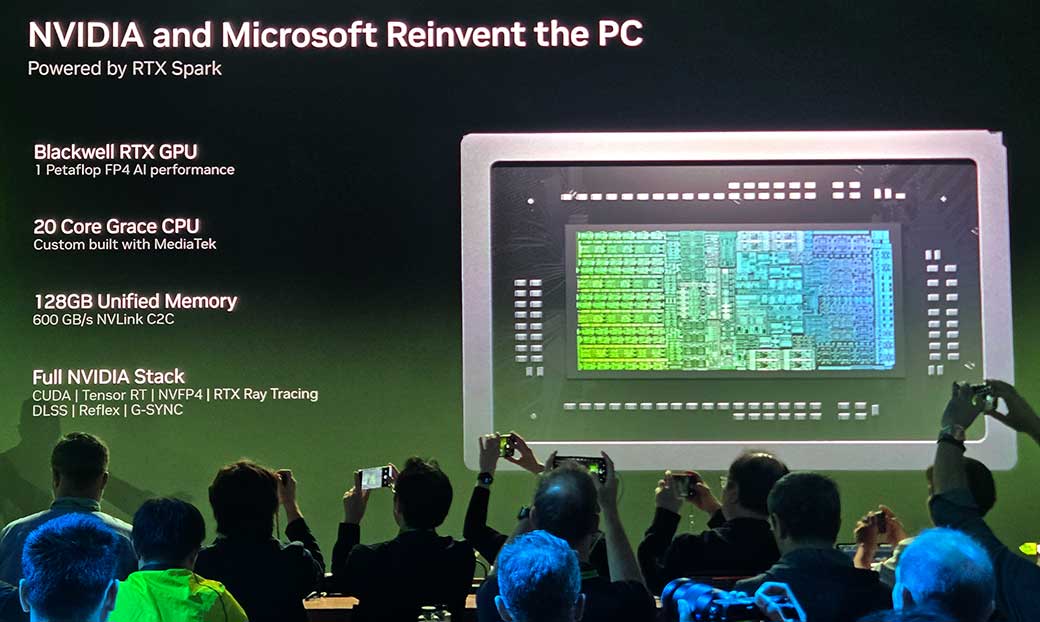
Microsoft’s newest hardware release is the Surface Laptop Ultra, which is a high-end 15″ laptop, based on NVidia’s new RTX Spark platform. This SparkN1X unified system on a chip is an ARM processor, which it has in common with previous SnapDragon based Surface Pro’s, but that aspect is new to me, as someone who has never used Windows on ARM. This is also a much more powerful ARM processor than the Qualcomm chips that have come before it, with more cores, bigger GPU, and greater memory capacity. The SparkN1x can share up to 128GB of DDR5 RAM between the CPU and GPU, allowing processing of large AI models, or lots of applications at once.
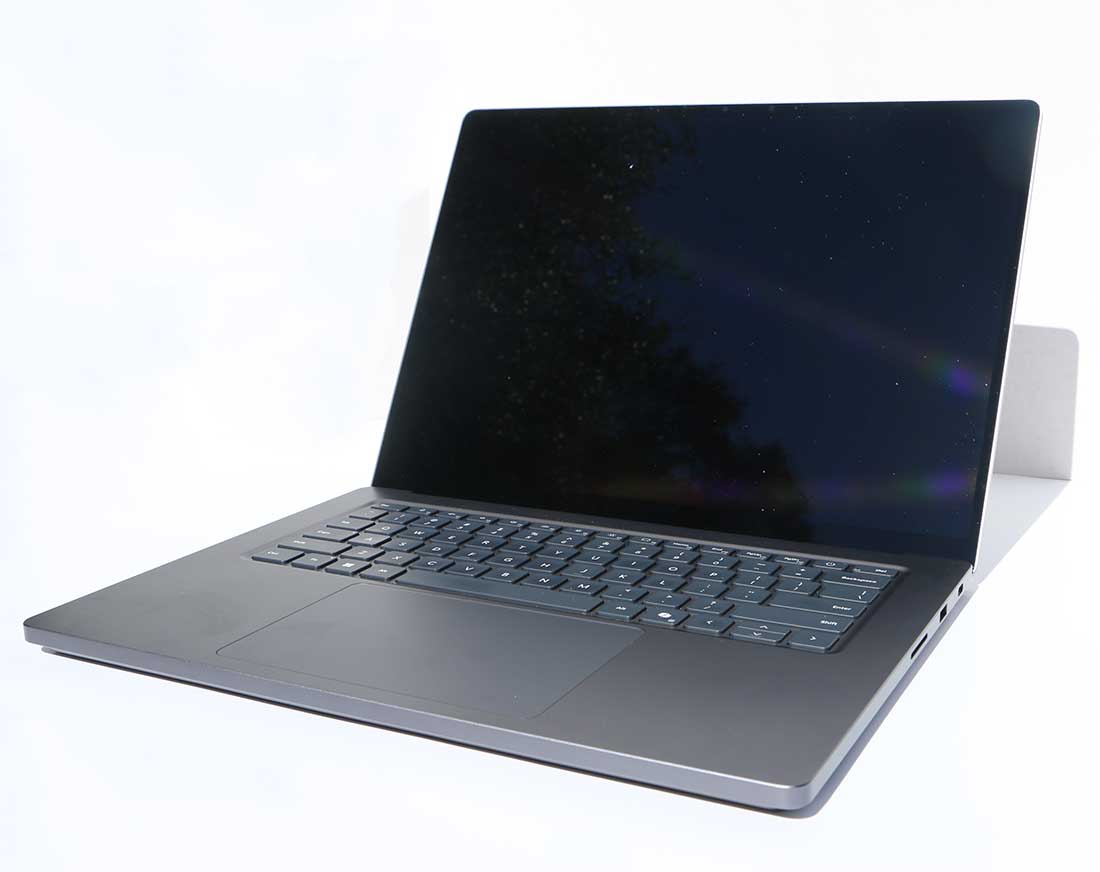 Microsoft is one of six OEM vendors releasing Spark RTX laptops, and each of them are including all of their top features in their Spark offerings. Microsoft paired the SparkN1x chip, with a 15” HDR touchscreen display, a large haptic touchpad, a backlit keyboard, and a new magnetic USB-C charger. The screen is a stunningly bright mini-LED with 1344 local dimming zones, offering 2000nits of peak brightness, with 100% DCI-P3 coverage, and supports Dolby Vision IQ at up to 120hz. It has an unusual resolution of 3270×2180, offering a tall 3:2 aspect ratio, and a 262ppi density. I am someone who is a bit of a connoisseur of nice screens, and this is easily the brightest laptop screen I have ever seen, and still has good darks due to the local dimming design. It is less than UHD resolution, but at 15”, it has enough pixels for clarity, and the 3:2 aspect ratio doesn’t lend itself to full screen video playback anyway.
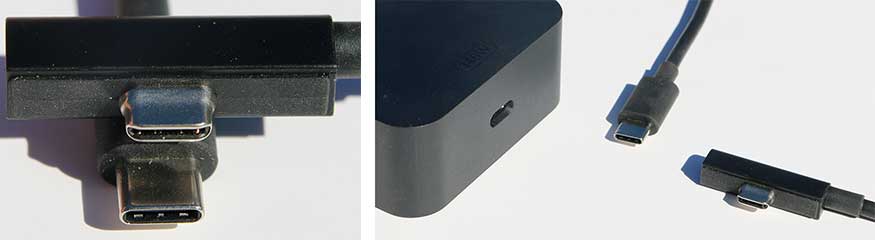 The laptop is 4.5lbs and 18mm thick, with a 92whr battery. It comes with a compact USB-C based 140W charger, and a unique cable with a new magnetic USB-C connection on one end. This connection is designed to fit into the USB-C port on the right side of the laptop, which is also usable as a regular USB port, but if the cord gets yanked, it is less likely to damage the laptop. The magnetic head has a wide shoulder to contain the magnets, which also acts as a lever on the insertable part, which is smaller than standard, and rounded off at the tip to allow it to pull out easier. The cable is reversable, so if you plug the magnetic side into the charger, you will have a standard end available for charging your phone or other device.
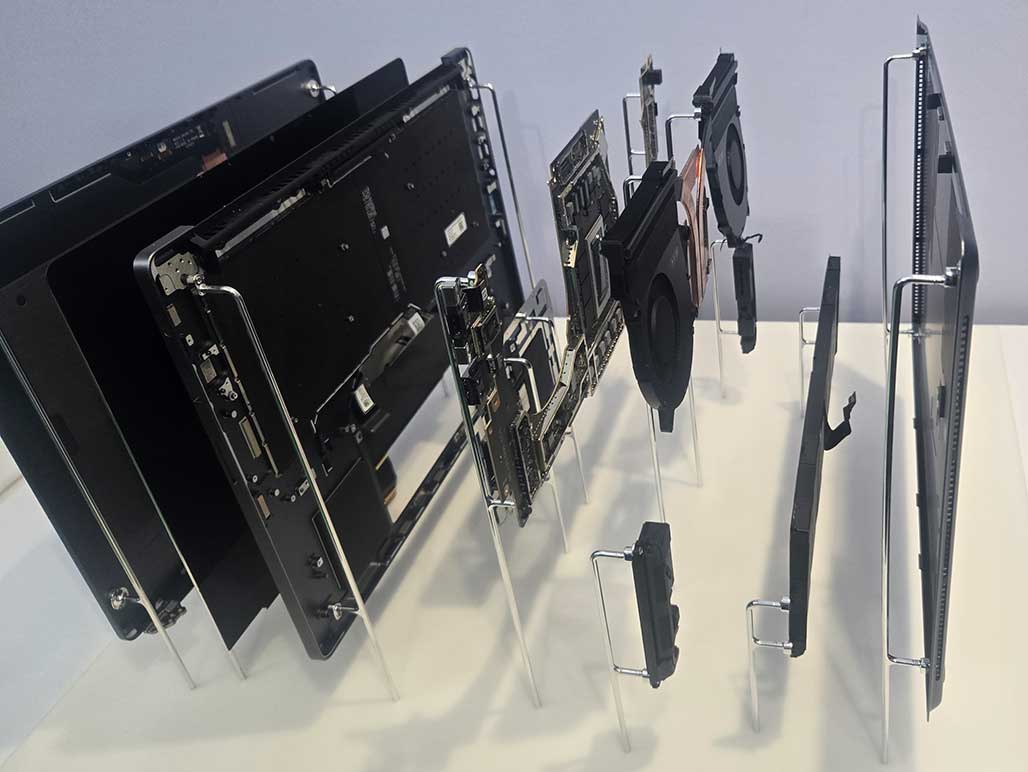
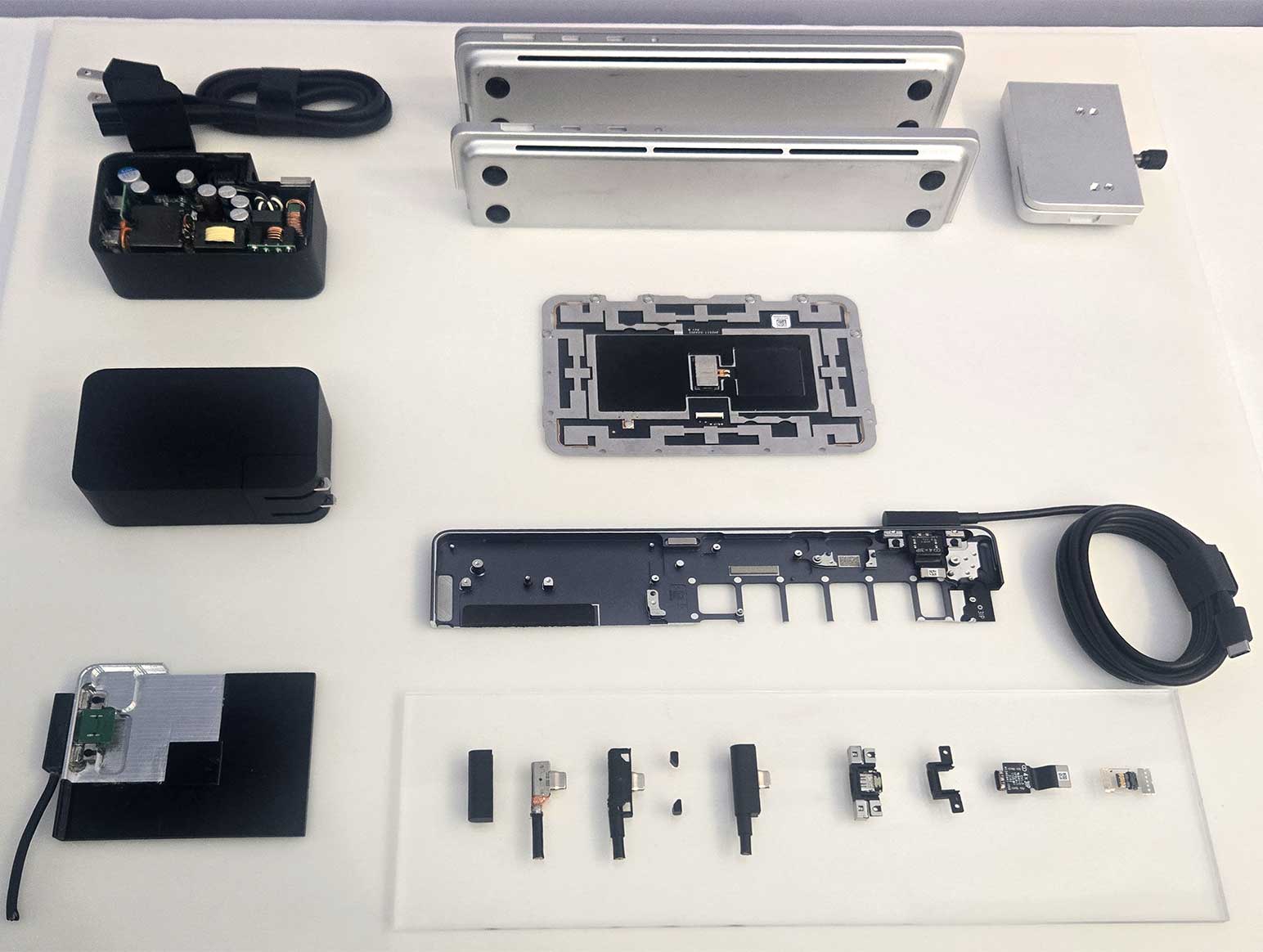 The laptop has 3 USB-C ports (including the magnetic one on the right), a USB-A port, an HDMI output, an audio jack, and an SD card slot. My unit is a model with 128GB of unified memory, and a 1TB SSD. That is a shockingly large amount of RAM and a disappointingly small storage drive. It is already nearly full after a week of testing. And there isn’t a larger option available to order at the moment. But the drive is user accessible and replaceable, and the system is surprisingly user accessible, with well labeled screws and parts.
 Compared to previous Microsoft Surface products, this one should be much more capable. The last few generations have already had ARM based options, so that aspect is actually not new to the lineup. There have been previous Surfaces with NVidia GPUs as well. But this is the first system with an NVidia CPU, and the first Surface product in this performance class.
Most x86 applications will work with this ARM version of Windows, because Microsoft’s Prism emulation layer interprets the x86 code into ARM64 commands, but drivers, as well as applications that interface directly with the CPU hardware, need more than software emulation. So I wanted to test out as many things as possible on this new ARM based system, because I had never used a SnapDragon system, which is the only other Windows ARM system at this point. I wanted to see what worked and what didn’t, as well as compare performance between my new Spark RTX unit, my existing Intel Panther Lake 358H laptop, and my Core i7-12700K desktop. That allows a comparison between an NVidia and Intel laptop. And a comparison between the portable SparkN1x with a 20-core CPU and integrated 5070 level GPU, to a 20-threaded desktop workstation, with a GeForce 4090 GPU.
 The first steps were to get all of the software and files I needed onto the system. I connected my MX Anywhere 2S mouse via Bluetooth without issue, and got it to work. I was going to need hundreds of gigabytes of data, to install creative apps, AI models, and my benchmarking media, so I wanted to use Ethernet instead of Wi-Fi. The system does not have an integrated ethernet port, so I used my USB-2.5GbE adapter, and it worked right away without needing to find drivers. Then it proceeded to drop the connection until I re-plugged the ethernet cable, every 10 minutes. This was not a promising start. Then the next morning I sat down at the computer, and couldn’t get the mouse to work either; Bluetooth was non-functional. Then it prompted me to do Windows updates (which I have a complicated relationship with), saying it was going to update Realtek drivers and Microsoft hardware drivers. Once that update was complete, I have never had an issue with either item. So there are some bumps that arise with new platforms, but in this case, they seem to be getting them worked out.
As an Adobe centric content creator, Premiere is my first application to test with. Adobe released an ARM native version of Premiere back in July of 2025, which surprised me at the time, because it was only applicable to Qualcomm CPUs, which aren’t known for high performance, and was a relatively small market. I now suspect that the resources put towards native ARM development in a number of applications were due to upcoming ARM products like this one. There originally were some serious limits on the ARM version of Premiere, including no support for ProRes. Now most things work as expected with a couple exceptions. Sony X-OCN files are still unsupported, but will be in the future, and tools like WRaptorDCP, Cineform, and P2 export are not coming at all due to age and lack of ARM compatibility in the supporting frameworks. My long-term Premiere benchmarking projects include X-OCN files from the Venice camera, so those clips don’t load, but the R3D and Alexa LF clips do.
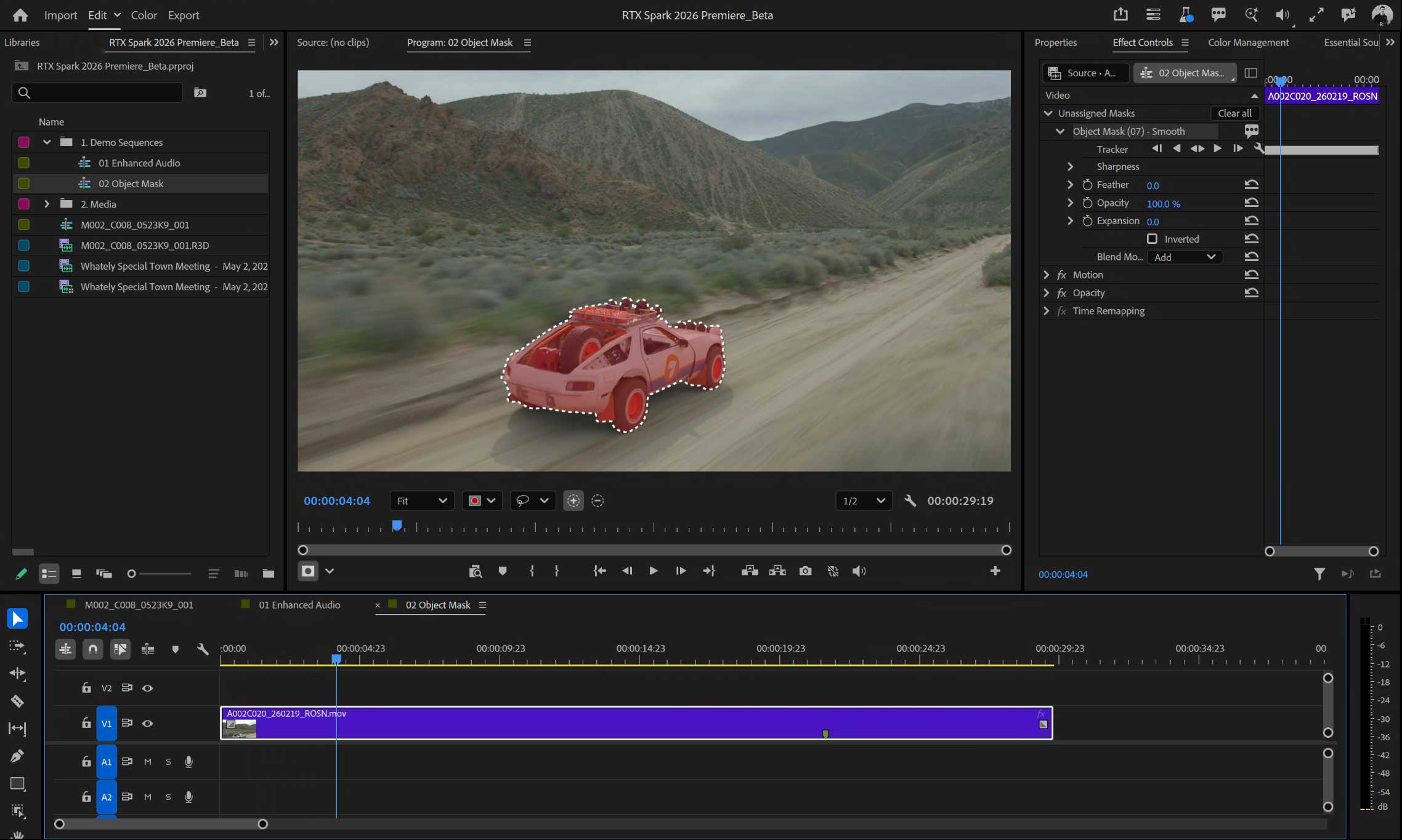 Adobe and NVidia wanted to focus on the performance of certain features they have been improving, so I tested the mask tracking and audio enhancement specifically. I was able to track a clip in 16sec on the Spark, which took 20sec on my desktop, and 28sec on my laptop. Not a huge difference, but it beat my desktop, which is great for a laptop. For enhanced audio, the Spark processed a stereo file at 8x real-time, while the desktop was 12x, and the Intel laptop was only 3x real-time. So Spark was a big improvement over the laptop, but not quite as good as the desktop, due to its huge GPU. For broader testing of Creative Cloud performance and features, I used PugetBench for Creators. The results placed this new Spark system far ahead of my Panther Lake systems, but not ahead of my desktop workstation in most tests.
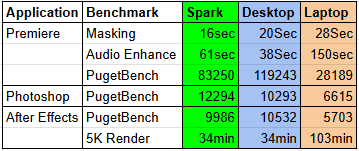 Puget also has a Photoshop test, which is far more thorough than any performance testing I could do in that application, and Spark even beats my desktop there, potentially due to some new improvements Adobe has added specifically for Spark, to optimize performance and bring processing for certain features back from the cloud to the local system. Next is After Effects, which was updated to be ARM native in the 2026 version. Besides the PugetBench results above, I did a real world test, rendering the master plates for a 5min episode of my Grounds of Freedom animation project. This is a 5K composition of PSDs, J2K renders with alpha channels, H264 footage, ProRes files, and a variety of other sources across a long list of layers and sub-comps. All of my formats were supported on ARM, so the export went smoothly. It took nearly the exact same time to export (34min) on both the Spark and my desktop workstation, while the Panther Lake laptop took 3 times longer (103min). So I am not leaving any performance on the table by using the Spark on the road, instead of remoting into my desktop at home.
NVidia highlighted the potential gaming performance of the new platform, so while I don’t anticipate anyone seeking out this platform for that purpose, it is still a good option to explore. NVidia claims that 85% of their content creation and software development customers are also PC gamers, so the systems could get dual use. How well will your games run on your new AI workstation? The first thing I tried was Age of Empires II, as an x86 based program, that isn’t as performance intensive. The game has gotten some level of ARM optimization over the past year, and scored an 1122 in the performance benchmark, which is good enough for ranked play in all modes. My Intel laptop and desktop are both higher than that, because they can run it natively, but it will be functional on Spark systems. Next I tried WarDogs, which is a brand new first person shooter, which I had heard would work, but it failed for me, likely due to compatibility issues with the anti-cheat system. NVidia claims many of those systems are expected to become much more ARM compatible over the next year. The last thing I tried was Company of Heroes, the original unpatched version, which was released in 2006. That was back when most CPUs were only single core, LCD flat panels were just becoming popular, and hardly anyone was running resolutions over 1600×1200. That game runs on modern 8K displays, ultra wide screen monitors, supports stereoscopic rendering, and all sorts of things that weren’t available when it was originally developed, and I can now confirm it works on ARM processors as well, averaging over 100FPS at maximum quality. THQ made a solid, fully extensible piece of software in that game, which I continue to be impressed by 20 years later, regarding reliability and compatibility. Many other older games could work on ARM, but some will not, due to how significant the underlying architecture change is.
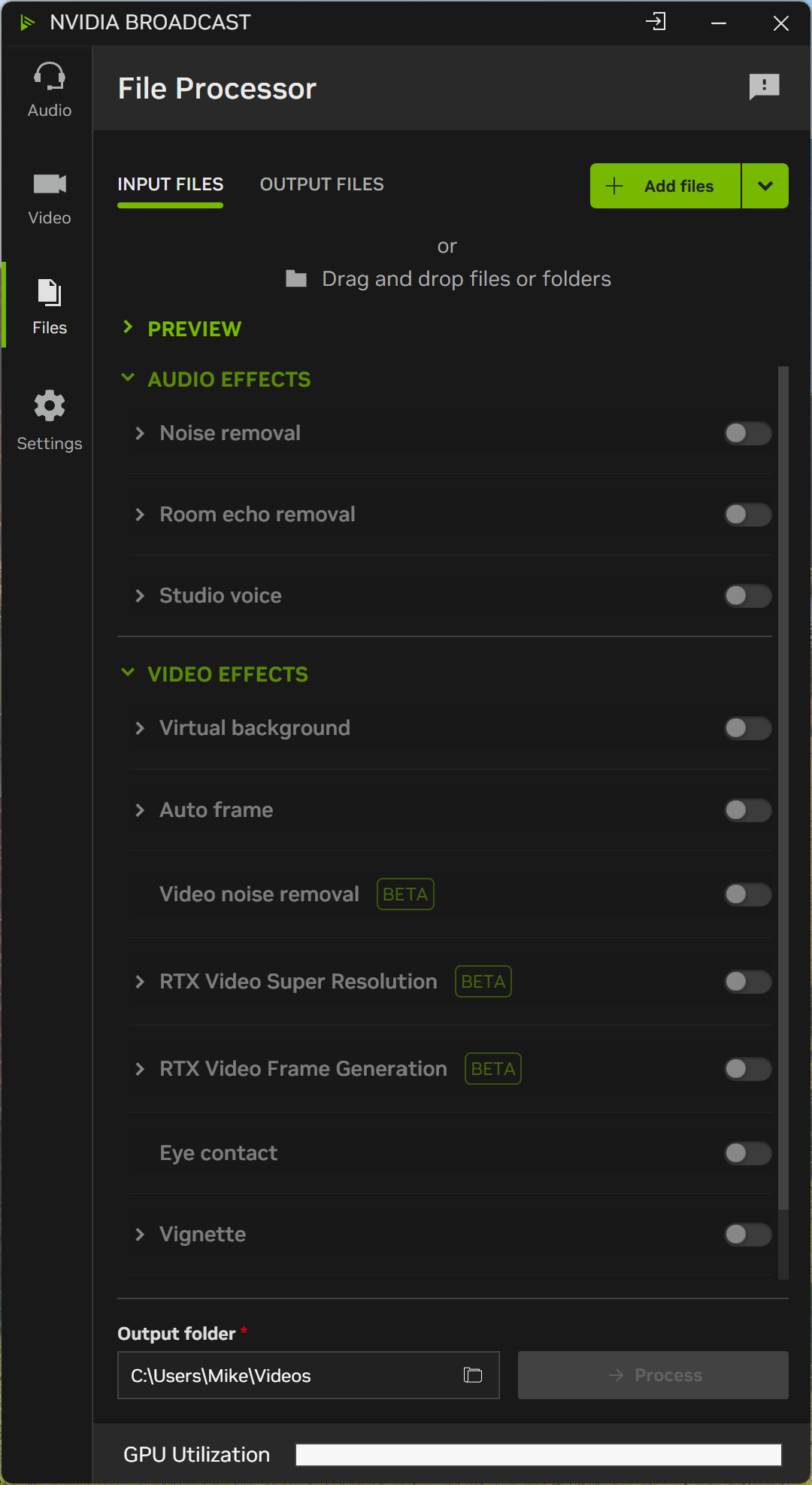 There is also a new ARM native version of the NVidia Broadcast app, which adds new functionality as well. It now has a file processor, so you can apply all of NVidia’s GPU processed goodness, not just to live feeds from your webcam and other inputs, but to existing media files saved on your hard drive. I was able to up-res a 1080p30 file to UHDp60, via RTX SuperRes and Frame Generation at about 10x real time on the Spark, so you could update your entire video collection with AI powered DLSS processing. You can also apply audio cleanup to older recordings. And it is fully MCP compatible, so you can have your AI agent controlling your live streaming for you. There are other applications that are integrating MCP support, to allow easier external control from AI agents. The applications I have tried are ComfyUI and Blender.
Blender is an open source 3D modeling and animation program, which is well optimized to utilize NVidia GPU hardware. The newest version leverages DLSS 4.5 to improve the interactive render speed of the viewing window when navigating or manipulating a scene, which I was able to test with their demo assets. Blender also has a benchmarking tool that has options for testing both GPU and CPU rendering. The CUDA benchmark seems much more relevant, since no one with a GPU is going to take ten times longer to do a CPU render, but it does demonstrate relative performance strength. Unsurprisingly the GeForce 4090 outperforms the RTX Spark GPU by a factor of 2-3, but the Spark CPU outperforms the Intel CPU by 30%, which is noteworthy.
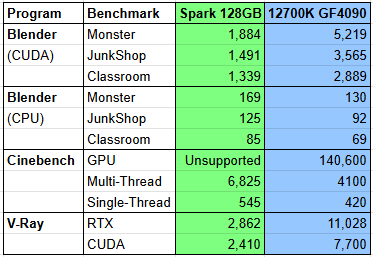 I also like using Maxon’s CineBench tool, which tests both CPU and GPU based rendering. It has an ARM native version, and renders the same scene in all versions, so it is good for comparing PC vs Mac, and in this case x86 vs ARM. It turns out the ARM version does not support NVidia GPUs yet, (because this is the first ARM system for windows with an NVidia GPU) but the CPU test does work. The Spark beat my Core i7 12700K workstation in both single and multithreaded tests, which is impressive. I would expect if the GPU test was working, the Spark would only be ⅓ as fast as my GeForce 4090, based on CUDA core count. The Panther Lake system wouldn’t run the multi-threaded tests, and has no discrete GPU, so the only number that would have appeared in that chart would be a single-threaded score of 475. I also ran V-Ray, and this is entirely a GPU test, for RTX or CUDA processing, so unsurprisingly, my GeForce 4090, which has 3 times as many CUDA cores and RTX cores, got triple the score of the RTX Spark.
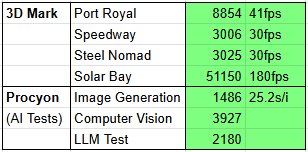 3D Mark from UL Solutions is a popular graphics benchmark, and got these results on the RTX Spark. I also ran UL Solutions’ AI testing suite called Procyon, and got these results. I don’t have any context for those values, but readers could potentially compare them to results on their own hardware. I also ran ML-Perf as another AI benchmark, since AI performance is one of the key values for this platform, and got these results.
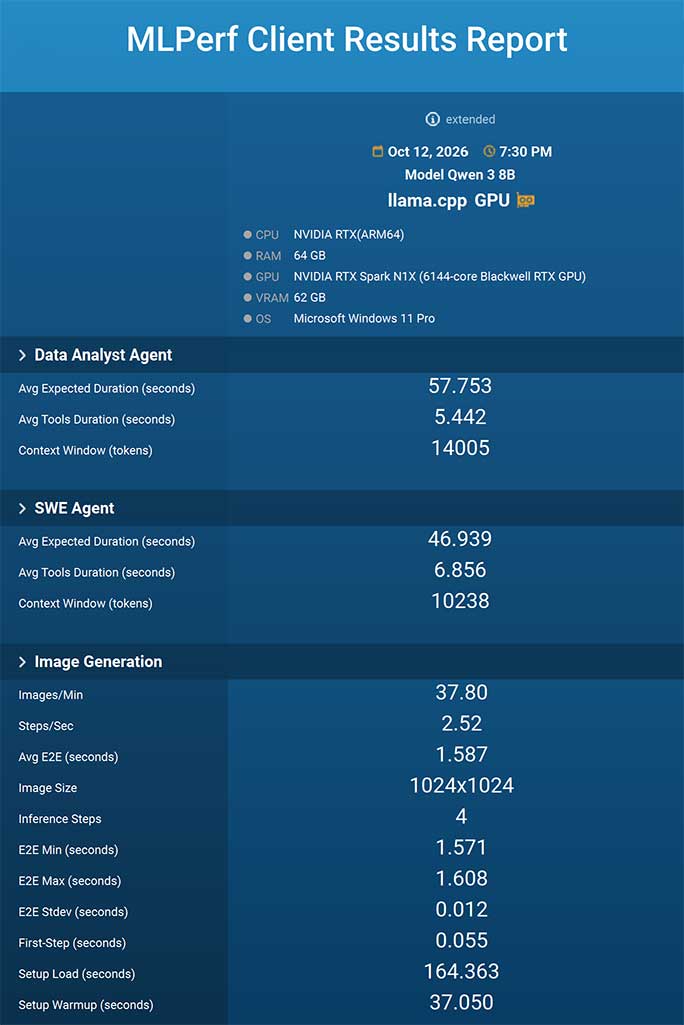 I recognize these values won’t have much significance for most readers, but it is more challenging to quantify AI performance, compared to running repeatable render tests for media creation benchmarking. NVidia was very focused on highlighting the local AI processing possibilities of this platform, pointing out that ‘frontier models’ (meaning the highest end cloud computing options) are only about 6 months ahead of local open source models. They claim basically everything ChatGPT could do six months ago, can be done with local models now. Therefore it would be reasonable to expect that in 6 months, this system will be able to do many of the tasks that currently require cloud based super computing. And doing that processing locally keeps your data more secure, your budget more predictable, and potentially more responsive to all but the most complex tasks.
 Hermes Agent was the main software I used for trying out agentic AI performance and experience. In one way the software is simple, just tell it what you want it to do. But in another way, there is a steep learning curve, understanding how to tell it what to do, what keywords to use, and how to steer it while in progress, if it doesn’t appear to be on the right track. There is also a steep learning curve for the software itself; it has to learn how to do the tasks you need, and how you like to do them. Frequently it won’t use the applications you are expecting at all, it will just write a file from scratch that can be opened in the target program. I have made some progress in developing skills and getting functional outputs from it after a week of experimentation, but it is a slow process. I mostly used Qwen3.8-27B as my model, but I did try Qwen3.6-35B at the recommendation of NVidia, when I complained it was running slow. That was much faster, as promised, but not as intelligent, as I was warned, and it actually failed certain tasks, and did not offer nearly as good results. It might be a better choice once I have established skills and workflows, and I just need to run them. Similarly I may have had a better experience if I had used powerful cloud based models to explore new tasks and develop skills, and then switched to local models to run those defined skills, but I didn’t want to be paying for cloud compute time, and local processing was the big feature they were marketing for this platform.
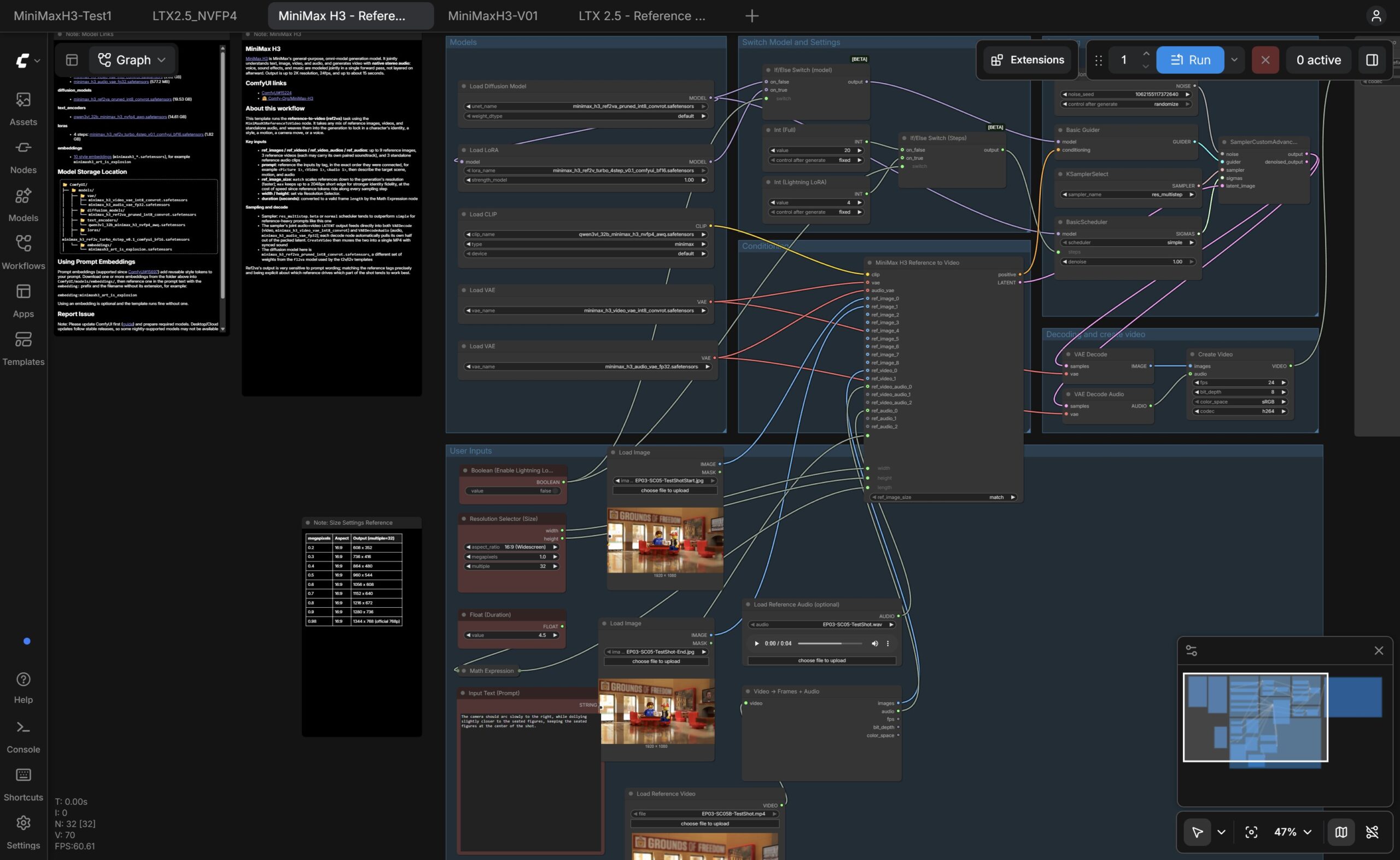 So it has been a slow process, but I have succeeded in getting it to create a fully functional ComfyUI workflow that utilizes the open source MiniMaxH3 model to take in a reference video, and output a full quality video where the camera angle is shifting. (Arcing around what was a locked off shot in my case.) It took a few hours to create the workflow, and an hour to generate the video, but the result was close to what I was hoping for. If I can get it to output good results reliably, I could have my AI agent rendering different clips for my series all night every night if I wanted. At 100W of power, and assuming 40cents/Kilowatt, it should cost about $1/day to run this system at full throttle.
Speaking of costs, this 128GB model currently lists for $5900 on Microsoft’s site. That is a lot of money, but the equivalent Mac Book Pro (128GB) costs $6700. This system should out-perform the Mac in most respects, so maybe this is a ‘bargain.’ It is a lot of money either way, and the RAM shortage is a big driver of that high price. The 32GB version of this Spark laptop costs $3700, and the 64GB option is $4300, which are cheaper than any NVidia GPUs with equivalent RAM. Only people who know they need that much memory to do their work effectively are going to be able to justify those prices, but if you do need that much memory for what you are processing, this platform is probably one of the best ways to get it. Like many of NVidia’s other current products, it is a very expensive tool, but there aren’t many other options available with those capabilities. Speaking of high priced hardware, NVidia also announced that there is going to be a Windows version of their $100K DGX workstation (72 Core CPU, 20K CUDA Cores, 750GB RAM). So RTX Spark is actually a relatively moderate step towards local AI processing capabilities by comparison. I have been impressed with the hardware so far, but it is going to take longer than a week to really get things dialed in on the software side, before I am using it to live the agentic AI dream. I will keep you updated, or maybe my agent will keep you updated, if things go well.