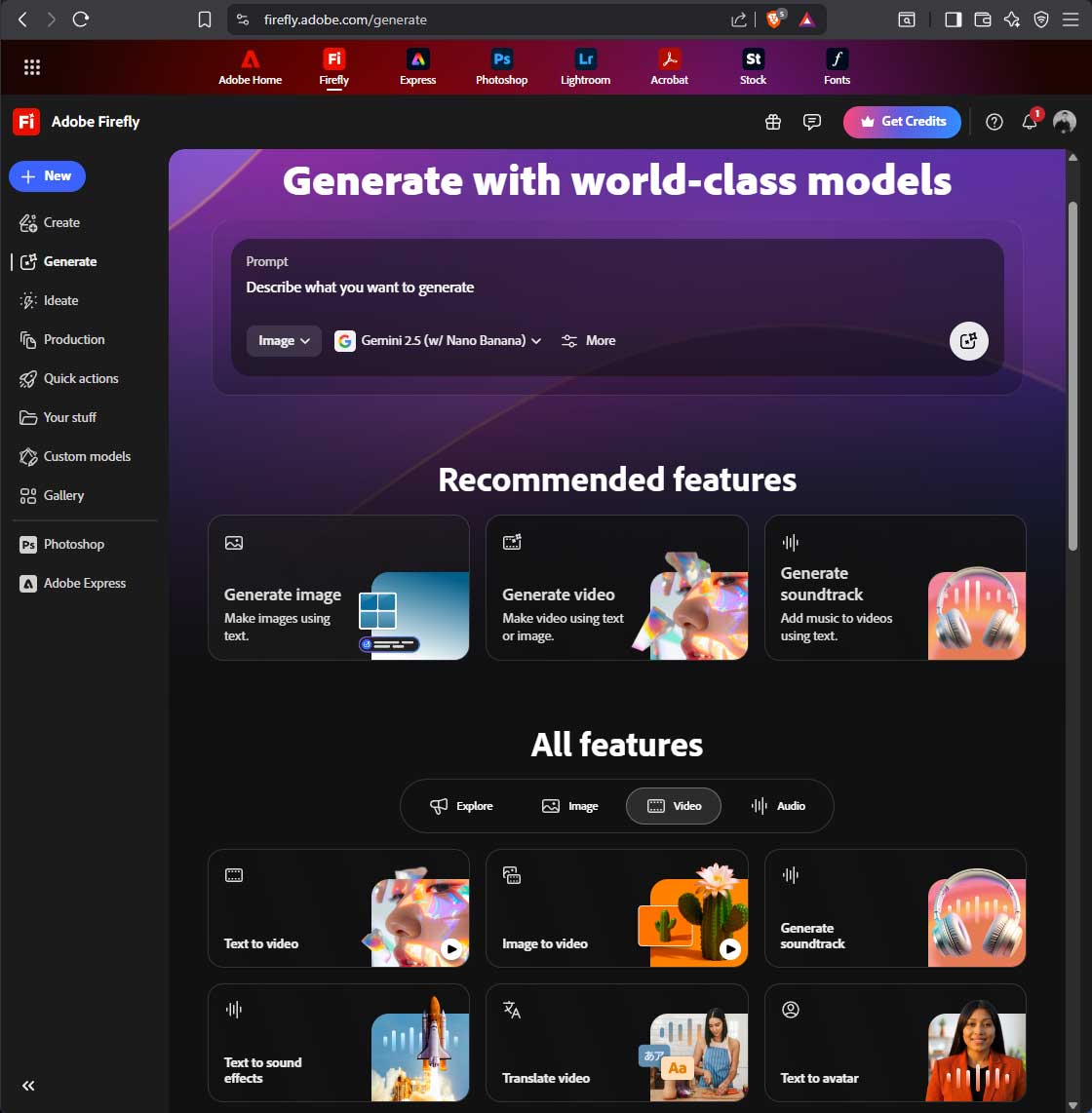
I have been playing with Adobe Firefly more the last few months, ever since Adobe MAX, inspired by some of the things I learned there. I have learned a number of interesting things from that experience, and Adobe has introduced a number of new features recently that are worth noting. The main things that have been recently added are Topaz’s generative up-res for video, and Runway’s Gen 4.5 video model.
Because my career is primarily focused on video, that is the aspect of Firefly where I have spent the most time. And that is also where we are seeing the most developments in generative AI at the moment. Over the last two years, I would say that image creation has arrived, and AI is a functional and useful part of most of those workflows. Video is just starting to get to that point, but it is getting there. Firefly’s tools are primarily centered around image to video, which makes sense, because that allows users to leverage the more mature image generating tools to create and/or refine the first (and potentially last) frame of their video, and then use AI to bring it to life with video. There are many different models available, with different strengths, and many of the most significant ones are directly available within Firefly. It is downright comical how different the results are between different models, and to demonstrate this, I set the same prompt and reference image to each of the available models, and compared the results.
That entire video was created and edited in Firefly, using the new Firefly video editor. The cloud based editor is not going to replace Premiere anytime soon, and is honestly slow and frustrating to work with, but it was able to create this video entirely, and the export from there was uploaded directly to YouTube, with no further refining in any other tool. So it is a start, having potential to become a decent tool for beginners, or even for pros who are trying to interface their normal workflows with the cloud based Firefly tools. You could just use it to string together a bunch of clips before downloading them as one piece, instead of having a bunch of tiny clips to manage and edit together, which is what I did for my second test. This next test was intended to utilize the last frame feature as well as the first, and there are fewer models that support that, so there aren’t as many variations. I was unable to get the video editor to do exactly what I wanted in this case, so I downloaded the string-out and finished it in Premiere.
Obviously both of these tests are based on reference images that are Lego based. That is because that is the visual motif of my Grounds of Freedom web series, and the medium I use for most of my experimental work. I have found that Google’s Veo 3 engine is by far the best option for brick film style videos, which I suspect is due to the model being trained on YouTube videos, which is where most brickfilms reside. I suspect the model was trained on my content, because when I provide nothing but reference images, the resulting videos have audio with voices and music that sound a lot like my series. It is as if the AI knows that videos that look like mine, ‘should’ sound a particular way. Some people are all upset by their content being used to train AI, but in this case I find it to be to my benefit.
I actually wanted to further train Firefly on my content, which is a new feature they have on the image generation side, but I have not been able to do that yet. It is limited in beta and I have been on the waitlist since MAX. But I have 30 stills from my series ready to go, to see what Firefly can do once trained on my visual style, planning to use those newly generated images as the starting point for further video clips.
Runway Gen4.5 is the newest generative model added to Firefly, but it currently doesn’t support reference images, which is my primary way for maintaining visual consistency between shots. So while it can generate some cool looking results, I have yet to find a way to get anything useful from it. The initial way of doing that would be overly long prompts, but I have never attempted composing a thousand word prompt, and I doubt it would convey as much information as a reference image.
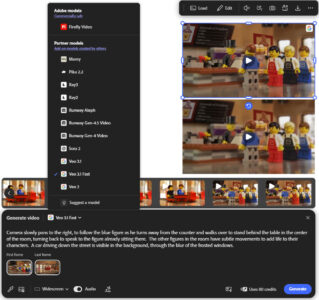 Besides Veo3 offering the best visual results at the moment for my uses, it also generates audio, which I have found useful for synchronizing footsteps and other sound effects. I have not gotten it to generate usable dialogue scenes of much value yet, so I still use Character Animator for that aspect, and then Firefly for the motion parts of the scene. I have also found that ‘Veo 3.1 Fast’ usually gives me better results than the non-‘fast’ version, and at one fifth the cost (80 credits per generation instead of 400). Now the Veo3 model is not “commercially safe” like Adobe’s Firefly model, but that is not relevant to my use case, of creating an independent web series on YouTube. But people with other intended uses need to factor that into the equation.
The other new feature Adobe recently added to Firefly is Topaz Labs’ Astra generative AI upscale for video. Veo3 is currently limited to 1280x720p24 output (in Firefly Boards), but my Grounds of Freedom show is shot and animated at 5K, for 1080p FHD delivery. I just accepted the 720p limitation for my initial tests and work, and alleviated the issue a bit by only animating the parts of the frame that needed it. 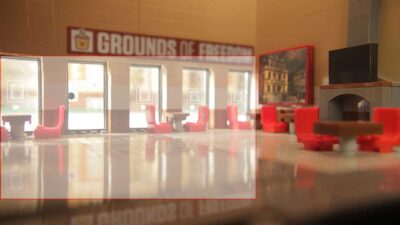 That allowed me to maximize the use of the 1280×720 image where I needed it (generating background motion content outside the windows and in the reflections on the floor). The other option now in Firefly, is to up-res the result from Veo3 (or other models), with Topaz Labs Astra, before downloading it into your edit. Topaz’s tools are well regarded and probably the best option for that workflow at the moment. Firefly now allows users to up-res videos to 1080p or UHD using Topaz, offering “Precise” or “Creative” generative up-res, with two levels to each. I tried all four permutations on this opening shot for my series. Obviously this is something that is best viewed on a high quality monitor if you want to see the difference, but it is visible.
There is a difference in sharpness and detail with the Precise options, and the Creative options do add new details. I find the distinctions most apparent in the sign over the door, the character’s hair, and any text on the screen. Creative added whole new words where it was previously illegible. (The 5K reference frame was legible, but the 720p AI generated video was not.) If you want a copy of the actual file to review locally instead of on YouTube, with whatever compression they are adding, it can be downloaded from here.
I also realized at the end of this entire article process, that going back to the initial generative video tool instead of the one integrated into Firefly boards, offers higher resolution options for certain models, including 1080p for Veo3, but the workflow options are much worse. (Only one file generating at a time, no way to label or sort the results, no way to easily share assets between scenes, etc.) So I am looking forward to seeing those options integrated into Firefly boards for maximum quality output.
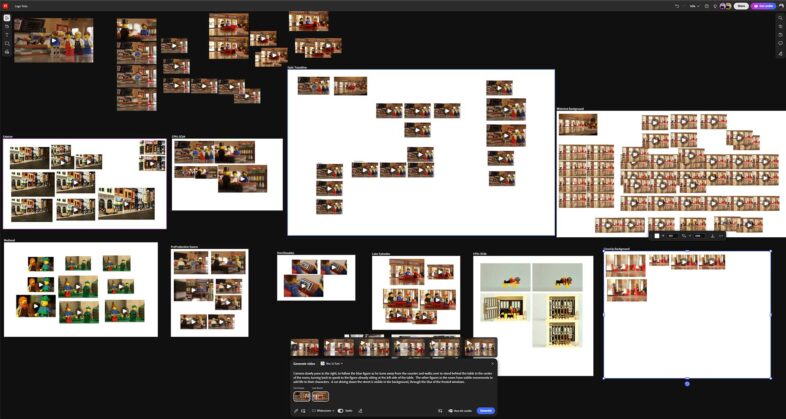 I did not initially embrace the ideation boards in Firefly until I saw them demonstrated during workflow presentations at MAX, and that is what really got me started in exploring the application more fully. My previous tests had been in the Image-to-Video part of the UI, which does offer more options, but is very clunky to use. I would call that ‘testing’ Firefly, while once I jumped into boards, I was ‘using’ Firefly. Boards becomes the file system for your cloud assets, because AI generation results in lots of small media files, many of which look very similar. (They should probably implement a take numbering system to make it easier to track.) It allows you to visually organize those images and clips, and quickly compare them, as well as directly further the generative process. Generate an image you like, converting it to video is only a click away. Like that video, modifying it is only a click away as well, but that option still needs work.
Firefly offers the option to use Runway Aleph, to modify existing videos. This feature has been there for a while, but I have yet to get it to do anything I am actually looking for. Even something as ‘simple’ as removing a character from a shot (which seems like the type of thing it would be designed to be used for) doesn’t give me the results I am expecting. 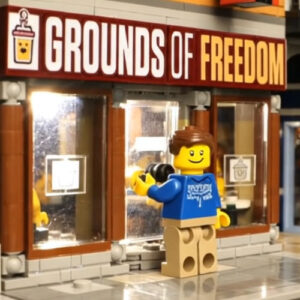 I asked it to replace the face of the character walking in the shot above, but it added a face to the back of his head as he walks through the door. It also only processed the first five seconds, so plan accordingly. But the face looks pretty decent, so it is the first step into the process of editing video content with AI, instead of just generating (or re-generating) it from scratch or reference images. So there are lots of interesting things you can do with Adobe Firefly, and the potential is there to be able to do a whole lot more, as the platform and the models continue to develop and mature. I am glad that I am finally taking the time to dive into it, after being inspired to at MAX, because now I can continue to gain experience with the current models and tools, better preparing me to fully utilize the more powerful ones that are surely coming in the future.
Just to be clear, I am aware that there are all sorts of downsides to the propagation of generative AI, but none of those are mitigated by ignoring it, so it seems best to embrace the benefits, which may also better prepare one to understand the impacts going forward. If you are familiar with the weaknesses of AI, it will help you identify generated content in the future, which will likely be a beneficial skill. And if you can create some cool content at the same time, so much the better.